What/Why?
Setting up OIDC (PocketID) so that anyone accessing my links in Cloudflare must first be authenticated. This helps add an additional layer of protection by limiting exposure of your apps to the greater web.
Before you start
I’m assuming both PocketID and Cloudflare tunnels are already set up.
My PocketID guide can be found here.
Setup Identity Provider
Setup or grab your team name in Cloudflare
You’ll need your team name for the callback URL in PocketID.
- Login to Cloudflare One
- Settings
- Team name and domain -> Team name
Add Cloudflare as an OIDC Client
- Login to PocketID
- Administration -> OIDC Clients
- Click Add OIDC Client button
- Enter any name you want
- Enter callback URL (example below)
|
|
-
Check the option for PKCE
-
Click save
-
Save the Client ID and Client Secret provided.
-
Grab two more pieces of information for Cloudflare. All the URLs you need can be found at your PocketID’s OpenID configuration endpoint:
- Token URL
- Authorization URL
- Certificate URL (often called
jwks_uri) - You can find these values by visiting
https://<Your-PocketID-URL>/.well-known/openid-configuration
Add PocketID as a login method to Cloudflare Zero Trust
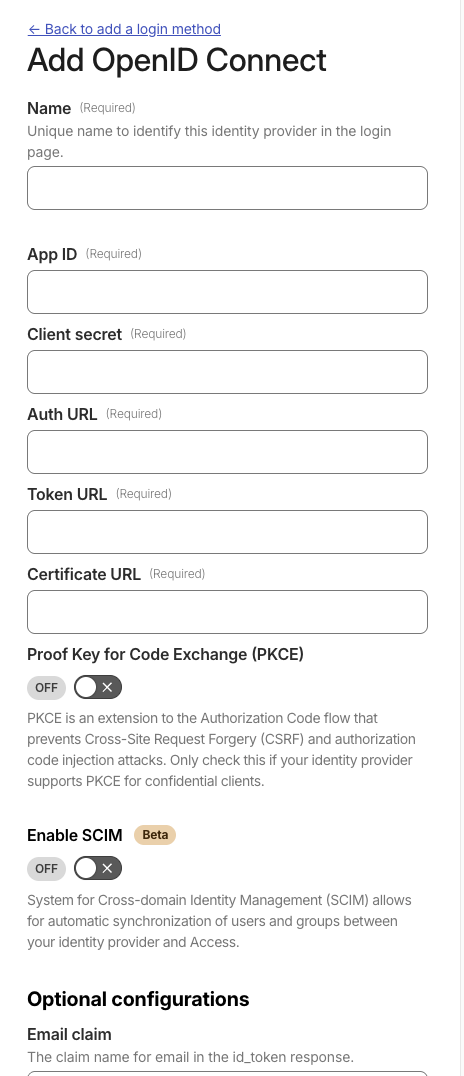
- From your Cloudflare homepage, click Zero Trust
- Integrations -> Identity Providers
- Add
- OpenID Connect
- Fill out the following fields using the saved information from PocketID
- Name: any name you want
- App ID: The Client ID you saved from PocketID
- Client Secret: The Client Secret you saved from PocketID
- Auth URL: https://subdomain.domain.com/authorize
- Token URL: https://subdomain.domain.com/api/oidc/token
- Certificate URL: https://subdomain.domain.com/.well-known/jwks.json
- Check the box for PKCE
- Save
- Click the Test button to make sure your configuration is correct.
Secure your apps
I’m going to set up a rule to protect all of my applications with PocketID, except for a few I’ll specify later. To do this, I’ll use a wildcard in the initial application rule instead of configuring each app individually.
Set up apps that go through PocketID
- From the Cloudflare homepage, click Zero Trust
- Access controls -> Applications
- Click the add an application button
- Self hosted
- Basic information
- You can add applications individually, but I’ll use a wildcard (
*) to protect most of them at once. - Name:
Allow All - Add public hostname
- Subdomain: *
- Domain: my domain
- You can add applications individually, but I’ll use a wildcard (
- Access policies
- Create new policy (this opens a new page)
- Policy name:
Allow ALL - Include: Set the selector to Everyone
- Click Save. You’ll be returned to the application setup page.
- Back under access policies
- Select an existing policy
- Select your new
Allow ALLpolicy
- Login methods
- Check only PocketID
- Check Apply instant authentication. This forwards users directly to PocketID for a more seamless login experience, bypassing the Cloudflare Access screen.
- Disable WARP authentication identity
- Click next
- I didn’t change anything here, click next again
- I left the defaults here as well, click save
Set up apps not to be protected by PocketID
Because I used a wildcard to protect all applications, I’m also blocking PocketID behind itself, which will fail. Here, we’ll create a rule to bypass authentication for PocketID and any other apps you don’t want protected.
- From the Cloudflare homepage, click Zero Trust
- Access controls -> Applications
- Click the add an application button
- Self hosted
- Basic information
- Name:
Bypass PocketID - Add a public hostname
- Subdomain:
pocketid(or your actual PocketID subdomain) - Domain: my domain
- repeat adding a public hostname for each app you don’t want blocked
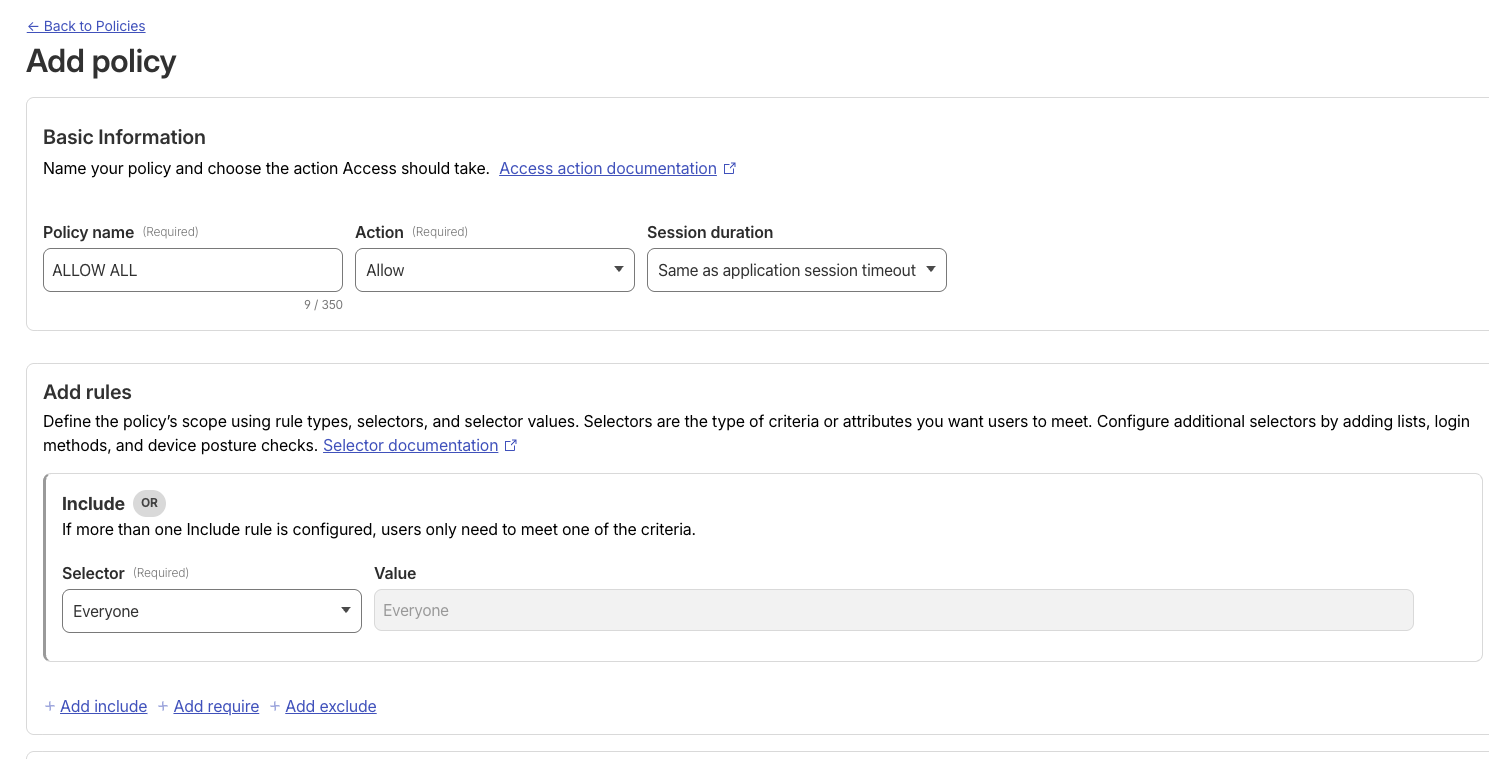
Add policy
- Name:
- Access policies (going to create a new bypass policy)
- Create new policy (this opens a new page)
- Policy name: Bypass
- Action: Bypass
- Include: Set the selector to Everyone
- Click Save. You’ll be returned to the application setup page.
- Back under access policies
- Select an existing policy
- Select your new
Bypasspolicy
- Click next
- I didn’t change anything here, click next again
- I left the defaults here as well, click save
Next steps
Congratulations! At this point, every URL except those you’ve set to bypass should be protected by PocketID authentication.
The next step is to configure your applications to trust Cloudflare for Single Sign-On (SSO). This will allow users to be automatically signed in after authenticating with PocketID, avoiding a second login prompt for each app.